2014年8月15日 星期五

重力小球上架啦

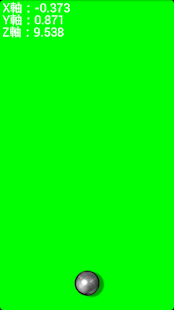
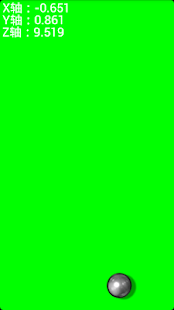
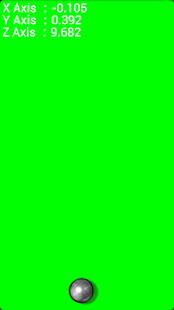
又一個小遊戲(誤),好像比較像一個小小工具=>重力小球上架啦,原本只想用來測試G-sensor的運作;乾脆分享給大家玩囉。


https://play.google.com/store/apps/details?id=com.capture4me.gravityball

重力小球 - screenshot thumbnail重力小球 - screenshot thumbnail重力小球 - screenshot thumbnail

一個利用手機中的重力加速度計來控制的重力小球,提供三軸資料及小球來測試您的重力加速度計哦
!!小知識補充!!
"G-sensor"是Gravity sensor之縮寫,一般也可稱為"Accelerometer"或稱為加速規,又稱加速計、加速針、加速度感測器、重力加速度感測器等等,是測量加速度的裝置;加速規的應用之一是測量重力,特別是使用於重量測定法的加速規上,這樣的裝置稱為重力計。

一个利用手机中的重力加速度计来控制的重力小球,提供三轴数据及小球来测试您的重力加速度计哦

!!小知识补充!!
"G-sensor"是Gravity sensor之缩写,一般也可称为"Accelerometer"或称为加速规,又称加速计、加速针、加速度传感器、重力加速度传感器等等,是测量加速度的装置;加速规的应用之一是测量重力,特别是使用于重量测定法的加速规上,这样的装置称为重力计。

This app can use g-sensor to control gravity ball, gravity ball provided g-sensor information and 3-axis g-sensor value.

!! knowledge supplement!!
"G-sensor" is an abbreviation Gravity sensor, which generally also be referred to "Accelerometer".

Feel free to email me with any questions.
E-mail:capture4me@gmail.com

2014年7月21日 星期一

new LoadingDataAsyncTask().execute();重複執行造成App閃退的問題

今天在執行專案時,發現螢幕休眠後再重啟專案居然給我閃退;查了判天原來是因為將

MsgBox.setText("Loading......");
       psDialog = ProgressDialog.show(getActivity(), "訊息", "資料載入中,請稍候...");
    new LoadingDataAsyncTask().execute();

放在onStart()裡頭,休眠後再重啟時造成的異常;把這個Function移到onCreateView()裡頭即可解決重啟閃退的問題囉.

以下為專案的生命週期Log:
07-21 16:06:55.354: I/Capture4me_log(31191): ~~~ Start MainActivity onRestart ~~~
07-21 16:06:55.354: I/Capture4me_log(31191): ~~~ Start MainActivity  onStart ~~~
07-21 16:06:55.354: I/Capture4me_log(31191): ~~~ Start MainActivity  Tracker onStart ~~~
07-21 16:06:55.354: I/Capture4me_log(31191): ~~~ Start Fragment onStart ~~~
07-21 16:06:55.476: I/Capture4me_log(31191): ~~~ Start MainActivity onResume ~~~
07-21 16:06:55.477: I/Capture4me_log(31191): ~~~ Start Fragment adView.resume~~~

屏幕休眠
07-21 16:06:56.330: I/Capture4me_log(31191): ~~~ Start Fragment onPause ~~~
07-21 16:06:56.330: I/Capture4me_log(31191): ~~~ Start Fragment adView.pause~~~
07-21 16:06:56.330: I/Capture4me_log(31191): ~~~ Start MainActivity onPause ~~~
07-21 16:06:57.511: I/Capture4me_log(31191): ~~~ Start Fragment onStop ~~~
07-21 16:06:57.511: I/Capture4me_log(31191): ~~~ Start MainActivity  onStop ~~~
07-21 16:06:57.511: I/Capture4me_log(31191): ~~~ Start MainActivity  Tracker onStop ~~~

重啟屏幕
07-21 16:27:43.118: I/Capture4me_log(32192): ~~~ Start MainActivity onRestart ~~~
07-21 16:27:43.118: I/Capture4me_log(32192): ~~~ Start MainActivity onStart ~~~
07-21 16:27:43.118: I/Capture4me_log(32192): ~~~ Start MainActivity Tracker onStart ~~~
07-21 16:27:43.118: I/Capture4me_log(32192): ~~~ Start Fragment onStart ~~~
07-21 16:27:43.122: I/Capture4me_log(32192): ~~~ Start MainActivity  onResume ~~~
07-21 16:27:43.122: I/Capture4me_log(32192): ~~~ Start Fragment adView.resume~~~

2014年7月17日 星期四

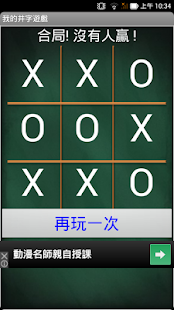
第乙支遊戲App:"我的井字遊戲"上架啦

辛苦了兩週終於將第乙支遊戲App"我的井字遊戲"推出上架啦,目前針對不同解析度還在思考如何可以讓使用者有較佳的遊戲感受.

Google play:
https://play.google.com/store/apps/details?id=com.capture4me.MyTicTacToe

我的井字遊戲 - screenshot thumbnail我的井字遊戲 - screenshot thumbnail我的井字遊戲 - screenshot thumbnail
說明
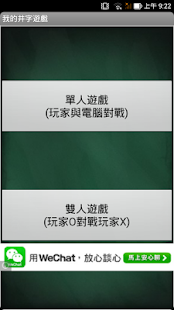
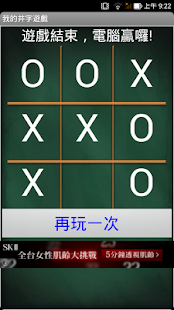
我的井字遊戲可以選擇單人遊戲(玩家V.S.電腦)或雙人遊戲(玩家1 V.S. 玩家2),井字遊戲主要使用X和O輪流標誌3×3方框內的遊戲。

勝利條件:
水平、垂直或斜角連成一線即為贏家。

若您有任何問題請給我發電子郵件。
E-mail:capture4me@gmail.com

備註:
此遊戲對解析度1280x720或720x1280手機會有較佳的娛樂效果,其他解析度即將推出新版因應,敬請期待。


2014年7月2日 星期三

介紹一個照片轉各類型圖示檔線上程式

介紹一個照片轉各類型圖示檔線上程式

http://www.pic2icon.com/zh-tw/format_conversion.php

當你要上架時需要一個512 x 512 pixel的高解析度圖示要怎麼辦咧?
到上述的網站你就會發現可不只有提供512 x 512 pixel的圖檔轉換,還提供由16 x 16到1024 x 1024解析度的轉檔;不但方法超簡單而且很貼心呢!!

第三個App:我的手電筒上架啦

搞了三天終於將第三個手電筒Android App上架啦.


我的手電筒擁有三種模式:
1. 恆開/關模式:恆開/關模式一般用於手電筒之亮暗功能
2. 閃爍模式:用於SOS或掛在腳踏車亦可使用哦
3. 摩斯電碼模式:按亮放暗,隨使用者操控

!!它擁有簡單有樂趣的操作方法,不但快速啟動,而且完全免費!!

我的手电筒拥有三种模式:
1. 恒开/关模式:恒开/关模式一般用于手电筒之亮暗功能
2. 闪烁模式:用于SOS或挂在脚踏车亦可使用哦
3. 摩斯电码模式:按亮放暗,随使用者操控

!!它拥有简单有乐趣的操作方法,不但快速启动,而且完全免费!!

My flashlight has three modes,
First mode is turn ON / OFF mode:turn ON / OFF mode is generally used for always turn on or always turn off the flash light.
Second mode is flashing modes:for SOS use or when you ride bicycles you can put your mobile phone use as a headlight.
Third mode is Morse Code mode:Press the button then the light will turn on, when you release the button then it will be turn off, this mode can use as a Morse code.

! ! It has a simple and fun method of operation, it can be quick start, and it's free! !

Any questions, please email me if you have.
E-mail: capture4me@gmail.com


如何讓Imagebutton有被按下去的感覺

今天在作第三支App時苦思如何讓使用者再按下Imagebutton時在畫面中有被按下去的感覺呢?
首先要為各位介紹一個icon generator的網站:
http://romannurik.github.io/AndroidAssetStudio/icons-launcher.html#foreground.space.trim=1&foreground.space.pad=0&foreColor=33b5e5%2C0&crop=0&backgroundShape=bevel&backColor=ffffff%2C100

製作icon方法如下:
1. 製作Turn On icon
    1-1 將圖檔存成png檔,打開launch icon generator web site後使用Image

    1-2 選擇欲使用的icon再按對話框的開啟即可 
    1-3 接下來將會看到各種不同解析度的icon,此時只要注意padding為0%
          (純屬個人喜好,客倌可以向行依需求調整)

    1-4 下一步驟只要按"DOWNLOAD ZIP"即會將所有解析度的icon下載為zip檔

    1-5 打開zip檔首先會看到res資料夾,進入res資料夾會看到各種不同Android解析度icon的資料夾,個人偏好drawable-xxhdpi(192 x 192 pixel)的圖檔;所以只要進入這個資料夾將檔案由ic_launcher.png改成所需的檔名即可。


    1-6 將此已改好檔名的png圖檔托到Android project裡頭的drawable就完成第一階段的任務


2. 製作Turn Off icon,這個仿照第一階段的任務,但在1-3選擇所需圖檔後需將padding由0%改為5%其餘步驟一樣


3. 將二個圖檔都托到project裡頭的drawable後即完成第二階段的任務,
   在這裡我的檔名是poweron.png & poweroff.png

4. 程式如何切換:
 4-1 切換imagebutton圖檔的方法需要使用
((ImageView) ButtonOnOff).setImageResource(R.drawable.poweron);//button initial
((ImageView) ButtonOnOff).setImageResource(R.drawable.poweroff);//button 按下時
          這兩個指令即可,ButtonOnOff即imagebutton的id,而此imagebutton使用
          setImageResource來呼叫切換R.drawable.poweron或R.drawable.poweron的圖檔

    4-2.未按下的default畫面
    4-3.按下後所秀出的畫面

這樣是不是就有被按鍵被按下的感覺啦


2014年6月30日 星期一

第二個App上架啦,MTK G-sensor Calibration

第二個App上架啦,名字是MTK G-sensor Calibration

https://play.google.com/store/apps/details?id=com.capture4me.mtkg_sensorcalibration

本App主要針對內建聯發科(MTK)中央處理器(CPU)平台手機/平板之G-sensor校正後將校正值寫入系統之中,讓您的手機/平板即使重新開機後資料並不會遺失,故不用每次重新開機就要針對G-sensor來重新校正;一般手機/平板在玩摩托車或彈珠類型或其他等等的遊戲或工具類App像水平儀工具等都會大量使用到這個G-sensor感測器;透過G-sensor校正工具校正後可讓您的遊戲或工具類App表現更佳。

!!小知識補充!!
"G-sensor"是Gravity sensor之縮寫,一般也可稱為"Accelerometer"或稱為加速規,又稱加速計、加速針、加速度感測器、重力加速度感測器等等,是測量加速度的裝置;加速規的應用之一是測量重力,特別是使用於重量測定法的加速規上,這樣的裝置稱為重力計。

!!貼心的小提醒!!
1. 此App只針對聯發科(MTK)平台之G-sensor校準,並不適用於其他平台。
2. 校正時請將裝置平放


使用Calibration工具前,
X軸為0.0670(單位m/s^2)
Y軸為0.2580(單位m/s^2)=>若用這個狀態
Z軸為9.5380(單位m/s^2),Z軸因此時手機平放所以會感受到1G(理論值為9.81m/s^2)

使用妨間免費的水平儀測試一下:
各位客倌可以發現水平儀的泡泡並不在中心的位置。


使用Calibration工具後,
X軸為0.0190(單位:m/s^2)
Y軸為0.0190(單位m/s^2)
Z軸為9.8160(單位m/s^2),Z軸因此時手機平放所以會感受到1G(理論值為9.81m/s^2)
使用妨間免費的水平儀再測試一下:
各位客倌可以發現水平儀的泡泡已經在中心點的位置。
是不是優化的非常好啦;
且這個App的優勢是重新開機也不需重新校準,是不是很方便啊。


本App主要针对内建联发科(MTK)中央处理器(CPU)平台手机/平板之G-sensor校正后将校正值写入系统之中,让您的手机/平板即使重新启动后数据并不会遗失,故不用每次重新启动就要针对G-sensor来重新校正;一般手机/平板在玩摩托车或弹珠类型或其他等等的游戏或工具类App像水平仪工具等都会大量使用到这个G-sensor传感器;透过G-sensor校正工具校正后可让您的游戏或工具类App表现更佳。

!!小知识补充!!
"G-sensor"是Gravity sensor之缩写,一般也可称为"Accelerometer"或称为加速规,又称加速计、加速针、加速度传感器、重力加速度传感器等等,是测量加速度的装置;加速规的应用之一是测量重力,特别是使用于重量测定法的加速规上,这样的装置称为重力计。

!!贴心的小提醒!!
1. 此App只针对联发科(MTK)平台之G-sensor校准,并不适用于其他平台。
2. 校正时请将装置平放

This App main uses for Media-Tek CPU inside platform for mobile/tablet G-sensor calibration.
  When the App calibrate then it will be written calibrate data to system, so that your phone or tablet even after reboot, this calibrate data is not lost, it is not necessary for every restart G-sensor to re-calibrate.
 This App will better your g-sensor performance when you want to play like kind of motorcycle or playing marbles or other types of games or like level tools.

!! knowledge supplement!!
"G-sensor" is an abbreviation Gravity sensor, which generally also be referred to "Accelerometer".

!! Just remind !!
1. This App only calibration  Media-Tek CPU platform's G-sensor, Can't not Calibration other platforms.
2. When you want to calibration the g-sensor, please flat your device first.

Feel free to email me with any questions.

E-mail:capture4me@gmail.com