2014年10月17日 星期五

How to fix “The system is running in low-graphics mode” error?

今天在用vmware虛擬機架ubuntu 12.0.4時發生了一件悲參的事,那就是我的ubuntu重新開機時告訴我"The system is running in low-graphics mode"
在網路上找了半天終於找到了一個解決的方案:http://askubuntu.com/questions/141606/how-to-fix-the-system-is-running-in-low-graphics-mode-error

最後試了許多方案,我的方案是用了以下的方法最後才的:
  • sudo apt-get purge nvidia-*
  • sudo apt-get autoremove
  • sudo apt-get linux-source linux-headers-generic
  • sudo apt-get install nvidia-current
  • sudo nvidia-xconfig
  • sudo shutdown -r now
若不行的話請參考:
https://answers.launchpad.net/ubuntu/+source/xserver-xorg-video-nv/+question/214231
~$ sudo apt-get purge nvidia-*
~$ sudo rm /etc/X11/xorg.conf
~$ sudo apt-get install ubuntu-desktop
~$ sudo apt-get install --reinstall xserver-xorg-video-nouveau
~$ sudo dpkg-reconfigure xserver-xorg
~$ sudo add-apt-repository ppa:ubuntu-x-swat/x-updates
~$ sudo apt-get update ; sudo apt-get dist-upgrade
~$ sudo apt-get install linux-headers-generic
~$ sudo apt-get install nvidia-current
~$ sudo nvidia-xconfig


若出現解析度報錯如何處理
執行sudo rm ~/.config/monitor.xml然後重啟即可

若顯示器初始只支援640x480又怎麼辦呢?
1.方法一:在vmware 設定 display為1366x768 or 1024 x 768 ...
2. 方案二:VMware安裝ubuntu12.04解析度設置無此項可通過修改開機解析度增加
               sudo gedit /etc/default/grub
                 找到:#GRUB_GFXMODE=640x480 在這行下面加一行
               GRUB_GFXMODE=1366x768


2014年9月9日 星期二

如何將ubuntu編譯後的執行檔案push到Android設備的/system/bin裡頭?(Permission denied)

最近在移植一款平板的G-sensor,想使用i2c tool,但該如何將ubuntu編譯後的執行檔案push到Android設備的/system/bin裡頭呢?
若直接將檔案push 到/system/bin將會遇到Read-only file system的錯誤訊息,解法如下述:

1. adb shell
2.mount -o rw,remount -t ext3 /system
3. adb push "file path & file name" to /system/bin
4. adb shell
5. cd /system/bin
6. chmod 777 i2cdetect, i2cdump, i2cget, i2cset四個檔案

接下來就可以使用i2c tool啦


2014年9月5日 星期五

I2C Tool presentation


今天來介紹一下如何在ARM base的手機或平板來Debug I2C以及I2C tool

  1. Download source code
    1. 下載源碼:
    1. 解壓源碼包:
      tar -xvf i2c-tools-3.1.0.tar.bz2
    1. 進入tools目錄
i2cdetect – 列舉I2C bus和上面所有的設備
i2cdump – 列印設備(如 codeccamera)上所有register的值
i2cget – 讀設備某個 register的值
i2cset –  設置某個register的值
  1. 編譯 I2C Tools
PS:請自行建立Compiler環境,需使用ARM Linux一般之compiler
    1. I2C Detect
arm-linux-gnueabi-gcc-4.6 -O2 -I../include -c i2cdetect.c -static -o i2cdetect.o
arm-linux-gnueabi-gcc-4.6 -O2 -I../include -c i2cbusses.c -static -o i2cbusses.o
arm-linux-gnueabi-gcc-4.6 -O2 -I../include i2cdetect.o i2cbusses.o -static -o i2cdetect
    1. I2C Dump
arm-linux-gnueabi-gcc-4.6 -O2 -I../include -c i2cdump.c -static -o i2cdump.o
arm-linux-gnueabi-gcc-4.6 -O2 -I../include -c i2cbusses.c -static -o i2cbusses.o
arm-linux-gnueabi-gcc-4.6 -O2 -I../include -c util.c -static -o util.o
arm-linux-gnueabi-gcc-4.6 -O2 -I../include i2cdump.o util.o i2cbusses.o -static -o i2cdump
    1. I2C Get
arm-linux-gnueabi-gcc-4.6 -O2 -I../include -c i2cget.c -static -o i2cget.o
arm-linux-gnueabi-gcc-4.6 -O2 -I../include -c i2cbusses.c -static -o i2cbusses.o
arm-linux-gnueabi-gcc-4.6 -O2 -I../include -c util.c -static -o util.o
arm-linux-gnueabi-gcc-4.6 -O2 -I../include i2cget.o util.o i2cbusses.o -static -o i2cget
    1. I2C Set
arm-linux-gnueabi-gcc-4.6 -O2 -I../include -c i2cset.c -static -o i2cset.o
arm-linux-gnueabi-gcc-4.6 -O2 -I../include -c i2cbusses.c -static -o i2cbusses.o
arm-linux-gnueabi-gcc-4.6 -O2 -I../include -c util.c -static -o util.o
arm-linux-gnueabi-gcc-4.6 -O2 -I../include i2cset.o util.o i2cbusses.o -static -o i2cset

  1. 串口線作業流程
    1. 插上串口線 & 將平板開機
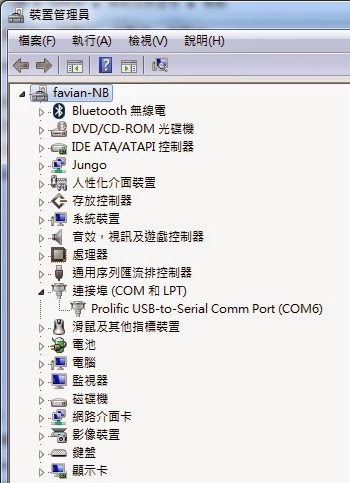
    2. Windows裝置管理員確認Comport(下圖為COM6)   
                                                
    1. 打開Putty,利用putty登入


    1. Putty將檔案放入機器
adb push \\UBUNTU\user\course\i2c-tools-3.1.0\tools\i2cdetect /system/bin
PS:其他三個檔案皆如此

  1. USB作業流程
      1. 插上USB & 將平板開機
      2. adb tool將檔案放入機器
   

      1. 改變檔案的Mode
chmod 777 i2cdump (所有檔案皆需經此步驟
  1. 執行指令
      1. i2cdetect –l 確認此平板有那些I2C總線,下述範圍表示有3I2C總線

      1. i2cdetect -y -r 0掃描第0I2C總線

      1. i2cdump -f -y 0 0x4CDump0I2C總線Address 0x4C的所有Register

i2cget -f -y 1 0x4c 0x08
=>取得i2c bus 1,I2C address為0x4C,register 0x08之data

i2cset-f -y 1 0x4c 0x08 0x00
=>設定i2c bus 1,I2C address為0x4C,register 0x08為0x00


Appendix
I2C address: 28 (0x1C) MMA8452
I2C address: 76 (0x4C) MMA7660
I2C address: 83 (0x53) ADXL345
I2C address: 104 (0x68) MPU6050

ubuntu 12.04 LTS 無法更新,apt-get update issue

最近在架設Armcore EVB開發平台,發現ubuntu 12.04無法執行apt-get update;上網找了很多方案都失敗,最後發現一個網站的方案才讓我的ubuntu 12.04能夠update安裝包,特意介紹給大家;網址是http://note.drx.tw/2012/01/mirror.html。

另轉載方案如下述:

1. 使用更新管理員更換 mirror

1.1. 開啟「更新管理員」。

1.2. 點選「設定」按鈕。

1.3. 點選「下載自:」 一欄,並點選「其他...」。

1.4. 找到國網中心的 mirror 後點選「選擇伺服器」。

2. 使用 sed 取代 mirror


2.1. 在取代前得先找出目前使用的 mirror。
jonny@oneiric:~$ cat /etc/apt/sources.list | grep main | awk '{ print $2}' | cut -d'/' -f3 | sed -n '3P' [Enter]
tw.archive.ubuntu.com

2.2. 將 tw.archive.ubuntu.com 替換成 free.nchc.org.tw。
jonny@oneiric:~$ sudo sed -i 's/tw.archive.ubuntu.com/free.nchc.org.tw/g' /etc/apt/sources.list [Enter]

2014年8月15日 星期五

重力小球上架啦

又一個小遊戲(誤),好像比較像一個小小工具=>重力小球上架啦,原本只想用來測試G-sensor的運作;乾脆分享給大家玩囉。


https://play.google.com/store/apps/details?id=com.capture4me.gravityball

重力小球 - screenshot thumbnail重力小球 - screenshot thumbnail重力小球 - screenshot thumbnail

一個利用手機中的重力加速度計來控制的重力小球,提供三軸資料及小球來測試您的重力加速度計哦
!!小知識補充!!
"G-sensor"是Gravity sensor之縮寫,一般也可稱為"Accelerometer"或稱為加速規,又稱加速計、加速針、加速度感測器、重力加速度感測器等等,是測量加速度的裝置;加速規的應用之一是測量重力,特別是使用於重量測定法的加速規上,這樣的裝置稱為重力計。

一个利用手机中的重力加速度计来控制的重力小球,提供三轴数据及小球来测试您的重力加速度计哦

!!小知识补充!!
"G-sensor"是Gravity sensor之缩写,一般也可称为"Accelerometer"或称为加速规,又称加速计、加速针、加速度传感器、重力加速度传感器等等,是测量加速度的装置;加速规的应用之一是测量重力,特别是使用于重量测定法的加速规上,这样的装置称为重力计。

This app can use g-sensor to control gravity ball, gravity ball provided g-sensor information and 3-axis g-sensor value.

!! knowledge supplement!!
"G-sensor" is an abbreviation Gravity sensor, which generally also be referred to "Accelerometer".

Feel free to email me with any questions.
E-mail:capture4me@gmail.com


2014年7月21日 星期一

new LoadingDataAsyncTask().execute();重複執行造成App閃退的問題

今天在執行專案時,發現螢幕休眠後再重啟專案居然給我閃退;查了判天原來是因為將

MsgBox.setText("Loading......");
       psDialog = ProgressDialog.show(getActivity(), "訊息", "資料載入中,請稍候...");
    new LoadingDataAsyncTask().execute();

放在onStart()裡頭,休眠後再重啟時造成的異常;把這個Function移到onCreateView()裡頭即可解決重啟閃退的問題囉.

以下為專案的生命週期Log:
07-21 16:06:55.354: I/Capture4me_log(31191): ~~~ Start MainActivity onRestart ~~~
07-21 16:06:55.354: I/Capture4me_log(31191): ~~~ Start MainActivity  onStart ~~~
07-21 16:06:55.354: I/Capture4me_log(31191): ~~~ Start MainActivity  Tracker onStart ~~~
07-21 16:06:55.354: I/Capture4me_log(31191): ~~~ Start Fragment onStart ~~~
07-21 16:06:55.476: I/Capture4me_log(31191): ~~~ Start MainActivity onResume ~~~
07-21 16:06:55.477: I/Capture4me_log(31191): ~~~ Start Fragment adView.resume~~~

屏幕休眠
07-21 16:06:56.330: I/Capture4me_log(31191): ~~~ Start Fragment onPause ~~~
07-21 16:06:56.330: I/Capture4me_log(31191): ~~~ Start Fragment adView.pause~~~
07-21 16:06:56.330: I/Capture4me_log(31191): ~~~ Start MainActivity onPause ~~~
07-21 16:06:57.511: I/Capture4me_log(31191): ~~~ Start Fragment onStop ~~~
07-21 16:06:57.511: I/Capture4me_log(31191): ~~~ Start MainActivity  onStop ~~~
07-21 16:06:57.511: I/Capture4me_log(31191): ~~~ Start MainActivity  Tracker onStop ~~~

重啟屏幕
07-21 16:27:43.118: I/Capture4me_log(32192): ~~~ Start MainActivity onRestart ~~~
07-21 16:27:43.118: I/Capture4me_log(32192): ~~~ Start MainActivity onStart ~~~
07-21 16:27:43.118: I/Capture4me_log(32192): ~~~ Start MainActivity Tracker onStart ~~~
07-21 16:27:43.118: I/Capture4me_log(32192): ~~~ Start Fragment onStart ~~~
07-21 16:27:43.122: I/Capture4me_log(32192): ~~~ Start MainActivity  onResume ~~~
07-21 16:27:43.122: I/Capture4me_log(32192): ~~~ Start Fragment adView.resume~~~

2014年7月17日 星期四

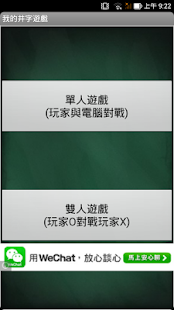
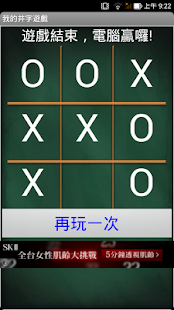
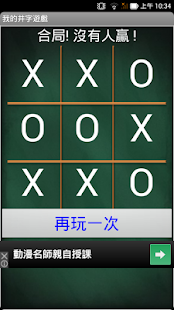
第乙支遊戲App:"我的井字遊戲"上架啦

辛苦了兩週終於將第乙支遊戲App"我的井字遊戲"推出上架啦,目前針對不同解析度還在思考如何可以讓使用者有較佳的遊戲感受.

Google play:
https://play.google.com/store/apps/details?id=com.capture4me.MyTicTacToe

我的井字遊戲 - screenshot thumbnail我的井字遊戲 - screenshot thumbnail我的井字遊戲 - screenshot thumbnail
說明
我的井字遊戲可以選擇單人遊戲(玩家V.S.電腦)或雙人遊戲(玩家1 V.S. 玩家2),井字遊戲主要使用X和O輪流標誌3×3方框內的遊戲。

勝利條件:
水平、垂直或斜角連成一線即為贏家。

若您有任何問題請給我發電子郵件。
E-mail:capture4me@gmail.com

備註:
此遊戲對解析度1280x720或720x1280手機會有較佳的娛樂效果,其他解析度即將推出新版因應,敬請期待。